Setting Up Your First Scheduled Task
Setting Up Your First Scheduled Task
A practical guide to bringing Claude into your real workflows, decisions, and connected tools.
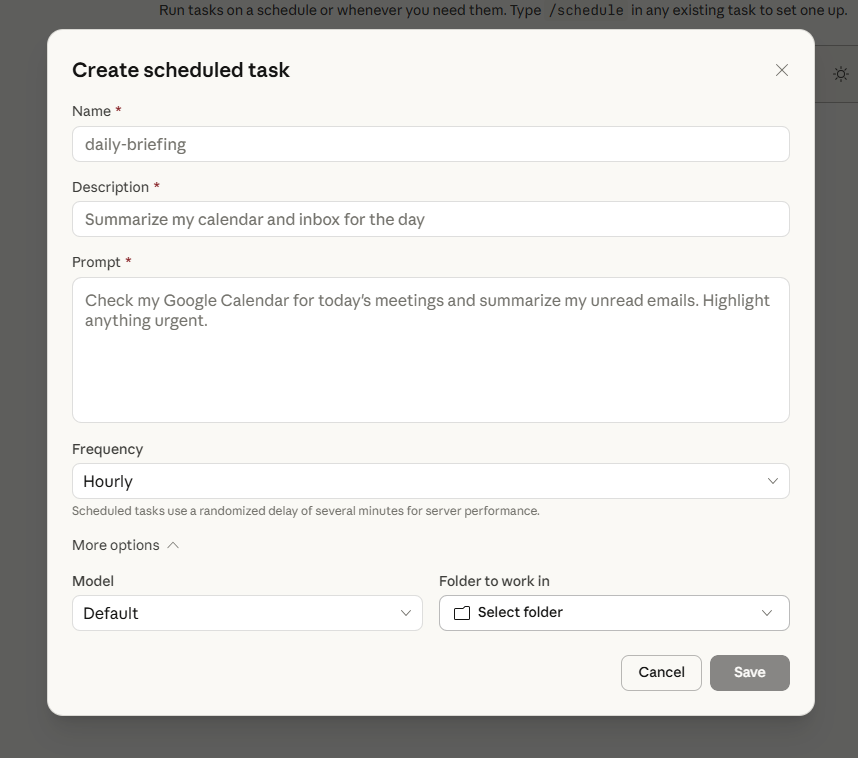
Creating a scheduled task in Cowork is straightforward. Here's exactly how to do it.
In Cowork, find the Scheduled Tasks section — usually in the sidebar or settings panel.
Click 'New Task' or 'Create Schedule'.
Describe what you want Claude to do in plain English: 'Every Monday at 8am, check my Odoo pipeline and create a summary document in my workspace folder.'
Set the schedule: choose the day, time, and how often it repeats.
Save it. Claude will run the task at the scheduled time, even if Cowork isn't open.
Tips for writing a good task description
Be specific about what you want Claude to do, where to get the information, and where to put the result.
Good example: 'Every Friday at 4pm, draft a weekly summary email in my Gmail Drafts folder. Include: top 3 things accomplished, any open items for next week. Keep it under 200 words.'
⚠️ Good to know: Scheduled tasks that connect to external tools will only work if those connectors are still active. Check your connectors if a task stops working.
In case you hear this term out there...
Trigger — The condition that starts a task — usually a time ('every Monday') or an event ('when a new email arrives').
Workflow — A series of steps that happen in sequence. A scheduled task is a small automated workflow.
✦ Write what you want in plain English, set the schedule, and Claude handles the rest — automatically.
There are no comments for now.
to be the first to leave a comment.